Keyboard Test Online: Check Every Key
Press the keys on your laptop or desktop keyboard and watch them light up on screen. The test also flags stuck keys, keys that type twice by themselves, and keys that never respond.
- 100% free
- No sign-up
- Runs in your browser
- Updated October 2026
On a phone or tablet, connect a USB (OTG) or Bluetooth keyboard first. The on-screen phone keyboard does not send real key presses, so it can't be tested here.
Press every key once. Blue = held down now, green = works, orange = typed twice by itself, red = held too long (may be stuck). While this area is focused, keys like Tab, Space and F5 stay on the page; click outside it to stop.
Last key
- key
- –
- code
- –
- keyCode
- –
- Side
- –
- Held for
- –
Other keys found
Media, volume and language keys that are not on the drawing show up here.
Problems found
- None yet. Type a sentence to check for double letters.
Not pressed yet
–
How to test ghosting and key rollover
Hold several keys together and watch "Held at once". If a key you hold stays white, the keyboard dropped it (ghosting). Try the combos games use: W+A+Shift+Space, or Q+W+E+R. Many laptop and office keyboards register only 2 to 6 keys at once in some combinations, which is normal for them.
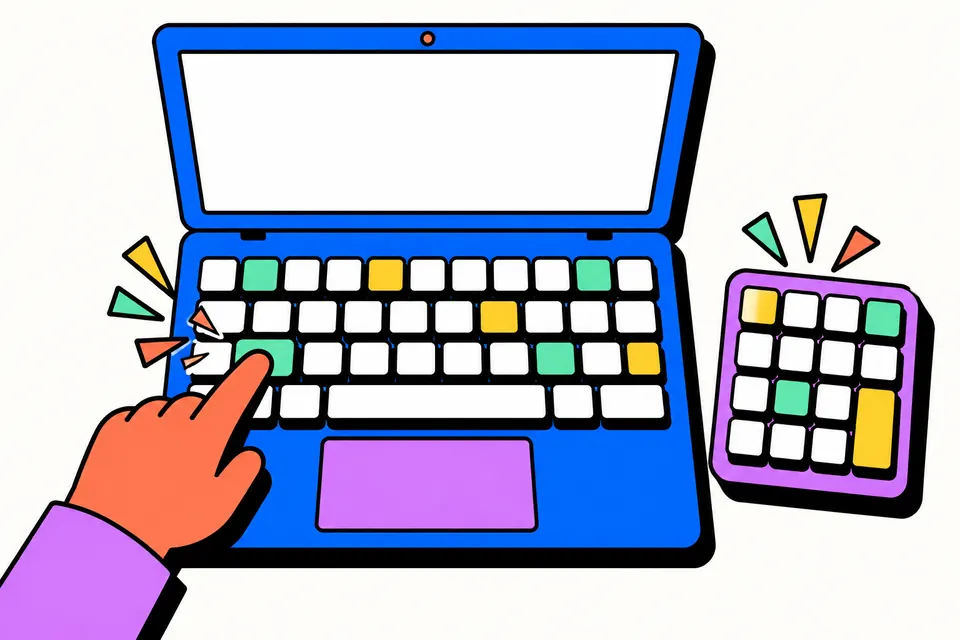
What this keyboard test checks
A keyboard can fail in more ways than a key that does nothing. Some keys send two letters for one press, some get stuck down and repeat by themselves, and some work only when pressed in the middle. This tester draws your keyboard on the screen and lights up each key as your computer receives it, so you can see every one of these problems at a glance.
It is useful before you buy a second-hand laptop, after spilling tea on a keyboard, when a new mechanical keyboard arrives, or when you suspect a key and want proof before visiting a service centre. It works in Chrome, Edge, Firefox and Safari on Windows, macOS, Linux and ChromeOS, with no download.
How to use it
- Choose Laptop or Full-size, and the layout that matches your Enter key: India / US (a wide, one-row Enter, used on most keyboards sold in India) or UK / ISO (a tall Enter and an extra key next to the left Shift). Turn on Number pad if yours has one.
- Click once on the drawn keyboard. While it is selected, keys such as Tab, Space, Backspace and F5 stay on this page instead of scrolling or reloading it.
- Press every key once, including both Shift, Ctrl and Alt keys. Each working key turns green.
- Type a few sentences at your usual speed to catch keys that type twice.
- Check Not pressed yet for anything you missed, and Problems found for warnings. Tap Copy result to paste the report into a chat or email for a repair shop.
What the colours mean
| Colour | Meaning |
|---|---|
| Blue | The computer thinks this key is held down right now |
| Green | The key was pressed and released properly |
| Orange | A second press arrived within the double-press time after release (chattering) |
| Red | Held down for over 3 seconds; if you are not pressing it, it is stuck |
| Striped | Fn: handled inside the keyboard, never sent to the computer |
Common keyboard problems and what they look like here
Dead key
You press it and it stays white. If only one key is dead, dirt under the keycap or a worn switch is the likely cause. If a whole row or a block of nearby keys is dead, the fault is more often in the ribbon cable or the keyboard's circuit, which a service centre needs to check.
Double typing (chattering)
Mechanical and laptop switches bounce a little when pressed. The keyboard is supposed to ignore those tiny bounces. When a switch wears out or gets dirty, a bounce slips through as a second press. A human cannot press the same key twice within about 30 milliseconds, so a second press that fast is a fault, not you. If you are a very fast typist and see false alerts, raise the limit to 50 or 80 ms.
Stuck key
A key that stays blue and then turns red is being reported as held down. Sticky drinks and crumbs are the usual reason. Shut the laptop down, turn it upside down and tap gently, or use a soft brush or a blower around the key. Avoid pouring liquids on it.
Ghosting
Hold several keys together and watch Held at once. If a key you are holding stays white, the keyboard dropped it. Many office and laptop keyboards register only some combinations of three or more keys, which is a design limit rather than a fault. Gaming keyboards advertise "anti-ghosting" or "N-key rollover" to avoid it.
Laptop keys that need special care
- Fn and media keys: Fn never reaches the computer by itself. Hold Fn and press F1 to F12; volume, brightness and media keys appear under Other keys found with their names.
- Print Screen: on Windows the system often takes this key before the browser, so it may light up only when released, or not at all.
- Windows and Alt+Tab: these go to the system. Use Full screen so Chrome and Edge pass more of them to the page. Ctrl+Alt+Delete always stays with Windows.
- Number pad: if the numbers act like arrows, Num Lock is off. Press it and try again.
- ₹ key: many keyboards sold in India print ₹ on the 4 key. It is not a separate key. In Windows with the English (India) keyboard, the rupee sign is usually typed with Right Alt (AltGr) and 4.
Reading the key codes
The Last key box shows what the browser received. key is the character or name, such as "a" or "Enter". code is the physical position, such as KeyA or ShiftRight, and stays the same whatever language you type in. keyCode is an older number still used by some programs. Held for shows how long the key stayed down, which is handy when a key feels slow to release.
When to get the keyboard repaired
Clean the keyboard first and test again. If the same keys still fail, note them using Copy result. For a laptop under warranty, contact the brand's service centre and share the list. For an external keyboard, a replacement is often cheaper than repair. Before buying a used laptop, run this test on the spot: it takes two minutes and shows problems a quick look can miss.
Test the rest of your device
The mic test checks your laptop or headset microphone before a call, and the touch screen test finds dead zones on phones and touch laptops. See every check on the phone and device tests page.
More keyboard test pages
Frequently asked questions
How do I check if all my keyboard keys are working?
Open this page, click once on the drawn keyboard and press every key one by one. Each key that works turns green. Any key left white under "Not pressed yet" after you pressed it is not reaching the computer.
How can I tell if a key is stuck?
If the computer thinks a key is held down for more than 3 seconds, it turns red and a stuck alert appears. If you are not touching that key, it is stuck: something under the keycap or a fault is keeping it pressed.
My keyboard types the same letter twice. How do I test it?
Type a few normal sentences on this page. When a key sends a second press within 30 milliseconds of being released, faster than any finger can press, it turns orange and shows up under Problems found. This is called chattering and usually comes from a worn or dirty switch.
Why doesn't the Fn key light up?
The Fn key is handled inside the keyboard itself and never sends a signal to the computer. Test it by holding Fn and pressing an F key: if the volume or brightness changes, or a different key code appears in Last key, Fn works.
Can I test my keyboard on a phone?
Only with a physical keyboard. Connect a USB keyboard with an OTG adapter or pair a Bluetooth keyboard, then open this page. The phone's on-screen keyboard does not send real key presses, so it can't be tested here.
Why did pressing the Windows key or Alt+Tab not count?
Some shortcuts go straight to the operating system before the browser sees them. Press Full screen in the tool: in Chrome and Edge this lets the page receive more of those keys. Ctrl+W and Ctrl+Alt+Delete always stay with the system.
Does this keyboard test record what I type?
No. Key presses are only used to light up the drawing on this page. Nothing is saved or sent anywhere, and the page has no text box that keeps what you type.