PDF to Text Converter (with Hindi OCR)
Take the text out of a PDF as clean paragraphs. Scanned pages are read with OCR, and Hindi typed in the old Kruti Dev font is turned into proper Unicode. Your PDF stays on your device.
- 100% free
- No sign-up
- Runs in your browser
- Updated October 2026
1Choose a PDF
2Text layout
Paragraphs are best for pasting into Word or WhatsApp. Keep every line for tables, addresses and forms.
3Scanned pages and Hindi
Turn this on if Hindi comes out as letters like “Hkkjr ljdkj”. It is switched on for you when we spot it.
Use this when the extracted text is jumbled, for example in some Hindi PDFs.
Text
Starting…
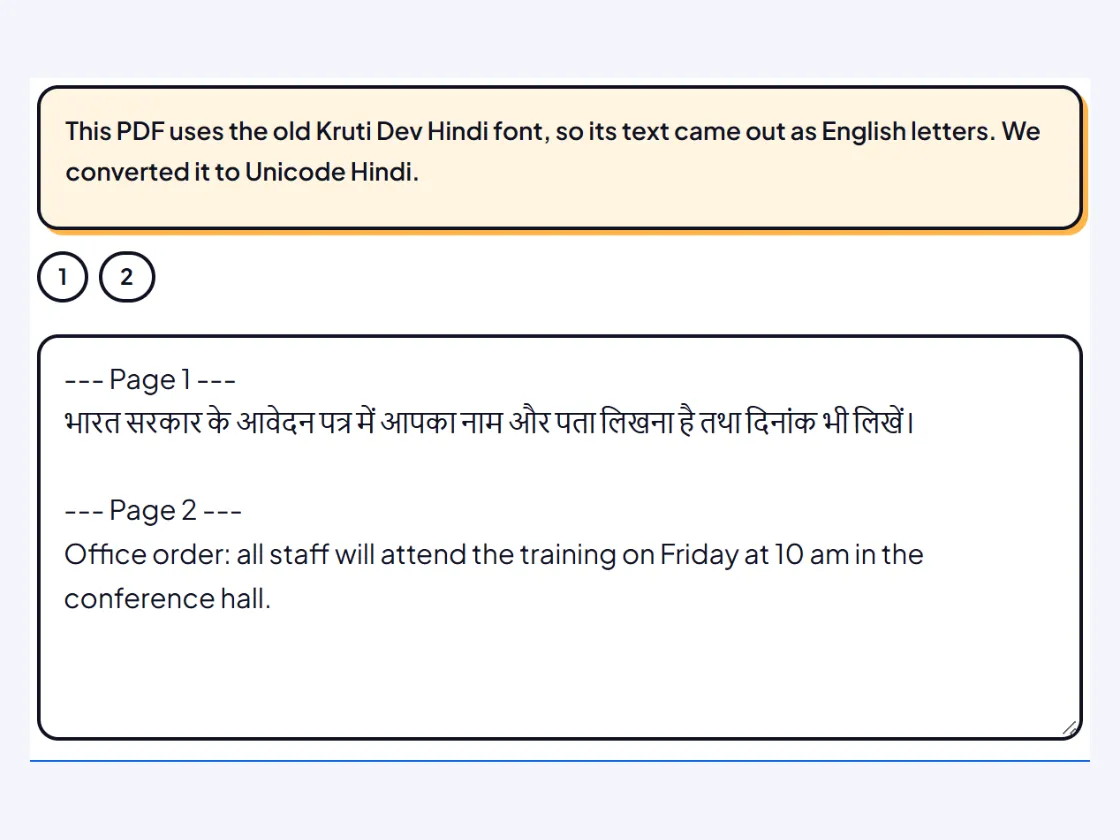
This PDF uses the old Kruti Dev Hindi font, so its text came out as English letters. We converted it to Unicode Hindi.
Get clean, editable text out of any PDF
Copying text from a PDF often goes wrong. Lines break in the middle of sentences, scanned pages give you nothing at all, and Hindi documents turn into strings like "Hkkjr ljdkj". This PDF to text converter handles all three. It takes out the text layer of normal PDFs and rebuilds the paragraphs, reads scanned pages with OCR in English or Hindi, and converts Hindi typed in the old Kruti Dev font into proper Unicode Hindi.
It is made for the documents people in India actually deal with: circulars and orders from government offices, court documents, exam notices, bank statements, rent agreements, college notes and old Hindi files. The PDF is processed in your browser. It is not uploaded, so you can use it for private papers, and there is no sign-up, page limit or watermark.
How to convert a PDF to text
- Choose the PDF. Tap the box or drop the file. If it is password-protected, type the password when asked.
- Read the result. The text appears at once, page by page. Small labels show which pages had a text layer and which are scanned.
- Read scanned pages. If some pages are scanned, choose the language and tap Read scanned pages. The first time, the OCR data downloads once.
- Fix Hindi if needed. If Hindi shows as English letters, we switch on Convert Kruti Dev text to Unicode Hindi for you. You can turn it on or off yourself.
- Choose the layout. Join into paragraphs for documents you will paste into Word or WhatsApp, or Keep every line for addresses, forms and tables.
- Save it. Edit the text if you like, then copy it or download it as Word (.docx) or plain text (.txt).
Three kinds of PDF, three ways to read them
| Kind of PDF | How you can tell | What the tool does |
|---|---|---|
| Made on a computer (Word, Excel, a website) | You can select words in a PDF viewer | Takes out the text layer exactly, and rebuilds lines and paragraphs |
| Scanned or photographed | Selecting text selects the whole page as a picture | Marks the page as scanned and reads it with OCR on request |
| Hindi typed in Kruti Dev or a similar font | Copied text looks like "dk;kZy;" or "Hkkjr" | Detects the pattern and converts it to Unicode Hindi |
Why Kruti Dev text comes out as gibberish
Before Unicode Hindi was common, many offices typed Hindi with fonts such as Kruti Dev and DevLys. These fonts draw Devanagari shapes on top of the ordinary English keyboard letters, so pressing d shows क and Hkkjr shows भारत. The file still stores the English letters. When a PDF made this way is copied or extracted, you get the English letters back, which no other program can read as Hindi.
Unicode is the international standard that gives every Devanagari letter and matra its own code (the Devanagari block runs from U+0900 to U+097F). Unicode Hindi can be searched, translated, typed on phones and pasted into any modern app. Our converter maps the Kruti Dev keys back to Unicode letters and puts the ि matra and the reph (the र् written above the line) in the right place, since Kruti Dev typists enter those out of reading order.
The conversion works on each paragraph separately, so English paragraphs in the same PDF are left alone. Rare symbols and some unusual conjuncts may not convert perfectly, so read through names and important words. Use Show the original letters if you need the raw text.
Tips for scanned PDFs
- Choose the right language before reading. Use Hindi + English only for pages that really mix both scripts.
- Quality in, quality out. A clean 300 DPI scan reads far better than a phone photo saved as PDF. We render each page at up to 300 DPI for OCR, but we cannot add detail that the scan does not have.
- Handwriting is not supported well. Filled-in forms will give you the printed labels but usually not the handwritten answers.
- Long documents take time. OCR takes a few seconds per page on a phone. You can stop at any point and keep the pages already read.
- Jumbled Unicode Hindi? Some PDFs store Hindi in drawing order. We fix the common misplaced ि automatically. If a page still reads oddly, use Read all pages with OCR to read it from the page image instead.
Paragraphs, lines and page markers
A PDF does not store paragraphs, only words at positions on the page. We rebuild them by looking at the gap between lines: a normal gap joins the lines into one paragraph, a bigger gap starts a new one, and a word split with a hyphen at the end of a line is joined back together. Numbered and bulleted lines stay on their own lines. If you prefer the exact line breaks of the original, choose Keep every line. Page markers such as --- Page 2 --- help you find your place in long files; switch them off for a continuous text.
Common mistakes to avoid
- Assuming the text is perfect. Always check numbers, names and dates against the PDF, especially after OCR.
- Expecting the layout to survive. The output is text only. Columns, tables, images, stamps and signatures are not copied.
- Converting English with the Kruti Dev option. If the original text was already correct, turn the option off.
Privacy
Your PDF is opened by the PDF reader built into this page and never leaves your device. OCR also runs locally: the engine and the language data download once (about 1.5 MB for the engine, 2 MB for English and 0.9 MB for Hindi) and are saved in your browser for next time. We do not keep your files or the text. This is an independent tool, not affiliated with the makers of Kruti Dev or any PDF software. To turn PDF pages into pictures instead, use PDF to JPG. For text in photos and screenshots, use Image to Text.
Frequently asked questions
How do I convert a scanned PDF to text?
Choose the PDF here. Pages without a text layer are marked as scanned, and a button offers to read them with OCR. Pick English, Hindi or Hindi + English first, then tap Read scanned pages. Each page is turned into an image and read on your device.
Why does Hindi text from my PDF look like 'Hkkjr ljdkj'?
The PDF was typed in a legacy font such as Kruti Dev, which draws Hindi letters on top of English keys. When you copy it, you get the English keys instead of Hindi. This tool spots that pattern and converts it to Unicode Hindi, so 'Hkkjr ljdkj' becomes 'भारत सरकार'.
Is it safe to use for bank statements and certificates?
Yes. The PDF is opened by your browser on your own phone or computer and is never uploaded. If the file has a password, you type it here and it is checked on your device only.
Can I convert a PDF to Word with this?
You can save the extracted text as a Word (.docx) file. It contains the words and paragraphs, not the original layout, images or tables. For a PDF that must look exactly the same, keep the PDF itself.
Why are some Hindi words jumbled even though the text is Unicode?
Some PDF makers store Hindi in the order the letters are drawn, not the order they are read, so a matra or half letter can land in the wrong place. We fix the common ि (i) matra problem automatically. If a page is still jumbled, tap Read all pages with OCR to read it from the image instead.
Is there a page limit?
No fixed limit. Taking out the text layer is fast even for long PDFs. OCR takes a few seconds per page, so a long scanned document can take several minutes, and you can stop at any time and keep the pages already read.
Can it read tables from a PDF?
It keeps the words of a table in reading order, row by row, with spaces between cells. Choose Keep every line for tables and forms. It does not rebuild the table grid, so check the numbers before you use them.