Free UPI QR Code Generator
Turn your UPI ID into a payment QR code any UPI app can scan, with or without a fixed amount. Add your colours and logo, then print posters, stand inserts and stickers at real size. Nothing is uploaded.
- 100% free
- No sign-up
- Runs in your browser
- Updated October 2026
1Payment details
Find it in your UPI app under Profile. It looks like name@bank.
Use the same name as your bank account, so customers see a matching name.
2Design
Real sizes on A4 paper with cut lines. Print at Actual size / 100%, not "Fit to page".
Before printing, pay ₹1 to this QR from another phone and check that the name shown in the app is yours. Money goes straight to your bank; this tool never handles payments. Need a QR for the exact total of one bill? Use the GST invoice generator.
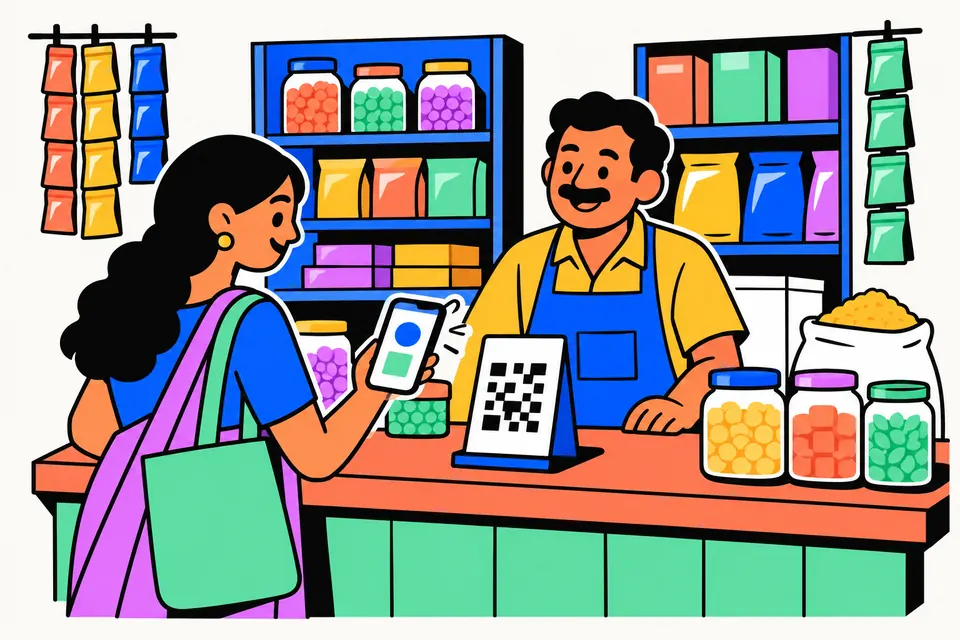
What is a UPI QR code?
A UPI QR code is a square barcode that holds a payment link. When someone scans it with a UPI app on their phone, the app reads the link, fills in your UPI ID and name, and asks them to confirm the payment with their UPI PIN. The money goes from their bank account straight to the bank account linked with your UPI ID.
The link follows the deep-link format in NPCI's UPI linking specification. A typical one looks like this:
upi://pay?pa=yourname@bank&pn=Ramesh%20Kumar&am=150.00&cu=INR&tn=Tuition%20fee
pais the payee address, which is your UPI ID (also called a VPA).pnis the payee name.amis the amount in rupees, only if you choose to fix one.cuis the currency, which is alwaysINR.tnis a short note, such as "Tuition fee" or "Temple donation".
This tool only creates the code. It never receives, holds or forwards money. Payments travel from the payer's bank to yours through UPI, and the tool is not part of that journey.
How to use the UPI QR code generator
- Enter your UPI ID, for example
yourname@bank. The tool checks that it is in the right format: a name, the @ sign, then your bank or app handle. - Type the payee name you want people to see, such as your own name or your shop name.
- Optionally add a fixed amount and a short note.
- Style the code: pick a dot shape, solid or gradient colours, and a rupee icon or your own logo in the centre.
- If you want something for the counter, choose a "Scan & Pay with any UPI app" poster, counter stand card or square sticker. It shows your payee name and UPI ID under the code. Tap हिंदी or English + हिंदी for a Hindi heading, or type your own in any language.
- Choose Download PDF and a real print size: an A4 poster, A5 (two on one A4 sheet), an A6 stand insert (four on one sheet) or 75 mm stickers. You can also download a PNG, the bare QR as an SVG for a print shop, or print straight from your browser.
- Before you share or print it, test the code with a ₹1 payment from another phone.
Fixed amount or any amount?
Leave the amount blank and the link has no am value, so the payer types the amount in their app. This suits a vegetable vendor, a small kirana shop or a temple donation box, where every payment is different. One printed code can be used for every customer.
Enter an amount and the payer's app opens with it already filled in, and usually the payer cannot change it. This suits fixed payments: a monthly tuition fee of ₹2,000, a ₹500 yoga class or a freelancer's invoice of ₹12,500. Add a note like "October tuition, Class 8" so both sides can spot the payment later. Make a separate code for each different amount.
Where to display your QR code
- On the shop counter next to the billing area, using a counter stand card.
- On a vegetable cart, tea stall or fruit stand, at a height people can reach with their phone.
- On invoices, quotations and chat messages, if you are a freelancer or tutor. Fixed-amount codes work well here.
- On donation boxes and notice boards at temples, gurudwaras and community functions.
- At the front desk of a clinic, coaching centre or housing society office.
Printing tips
- Keep strong contrast. A dark code on a light background is the easiest to scan. Pale gradients or light dots on a dark background can fail on older phone cameras.
- Keep the centre logo small. A big logo covers too much of the code.
- Do not crop the plain border around the code. Scanners need that blank margin.
- Print the PDF at Actual size / 100%, not "Fit to page", so an A6 insert really comes out 105 × 148 mm and fits your stand.
- Print large enough for the distance. A counter card can be small; a wall poster that people scan from a step away needs a bigger code.
- Use matte paper to avoid glare under shop lights, and laminate codes for outdoor stalls. Replace any print that is faded, wet or torn.
Safety tips
- Always check the payee name before paying. Your UPI app shows who the money is going to before you enter your PIN. If it does not match the shop or person in front of you, stop. Shop owners should note that customers may see the name on your bank account rather than the name you typed here.
- Never scan a QR code to receive money. Receiving money never needs your UPI PIN. Anyone who asks you to scan a code or enter your PIN "to get a refund" or "to receive payment" is trying to take money from you.
- Test before you print. Pay ₹1 from another phone and confirm it reaches your bank account. The tool checks only the format of your UPI ID; it cannot tell whether the ID exists or belongs to you.
- Look at your printed code now and then. A fraudster could paste a different sticker over it.
- Confirm payments in your own bank SMS or app, not by looking at the customer's phone screen.
- If you are cheated, inform your bank at once and report it on the national cybercrime helpline 1930 or at cybercrime.gov.in.
Privacy
Everything runs in your browser. Your UPI ID, name, amount, note and logo are not uploaded anywhere, and the QR image is made on your own device. There is no sign-up and no charge. Remember that anyone who scans your code can see your UPI ID and name, as with any payment QR code.
This tool is not affiliated with NPCI, any bank or any UPI app. Common UPI apps can scan the codes it makes because they use the standard UPI link format.
UPI QR for shops and donations
Frequently asked questions
Is it safe to use this UPI QR code generator?
Yes. The code is made in your browser and nothing you type is uploaded. The QR only holds your UPI ID, name, optional amount and note, which anyone paying you would see anyway. It cannot take money from anyone. The tool never handles payments; money goes from the payer's bank straight to the account linked with your UPI ID. Test it with a ₹1 payment before printing.
Does the QR code work with all UPI apps?
The code uses the standard UPI payment link format from NPCI's linking specification (upi://pay with pa, pn, am, cu and tn), which common UPI apps can read when scanning. Apps can differ in how they show the note or handle a fixed amount, so scan your code with a couple of different apps and make a ₹1 test payment before you print it.
Are there any charges for using this tool?
No. The generator is free, with no sign-up and no limit on how many codes you make. The tool takes no cut of any payment because the money never passes through it. Any UPI charges, if they apply, are set by your bank and the UPI rules, not by this tool. Paying by UPI from a bank account is generally free for the person paying; businesses can confirm details with their bank.
Can I set a fixed amount in the QR code?
Yes. Enter an amount and it is added to the link, so the payer's app opens with that amount filled in. This works well for tuition fees, class fees or a freelancer's invoice. Leave the amount blank if every payment is different, such as at a vegetable stall or a donation box, and the payer will type the amount themselves.
Does the UPI QR code expire?
No. The code is a fixed image of a payment link, so it has no expiry date of its own. It keeps working as long as your UPI ID stays active and linked to your bank account. If you change your bank, delete the UPI ID or switch to a new one, make a fresh code and replace every old print.
Why does a payment fail after scanning my QR code?
Common reasons are a typing mistake in the UPI ID, a UPI ID that is no longer active, the payer reaching their daily limit, low balance, or a bank server being slow. The payer's app or bank may also decline a payment under its own security checks. Recheck your UPI ID, make a new code if needed, and test it with a ₹1 payment.
Can I make a UPI QR code for my bank account without a UPI ID?
Not with this tool: it needs a UPI ID such as name@bank. If you do not have one yet, set up a UPI app or your bank's app with your account; it creates a UPI ID for you, which you can then paste here. Your bank can also tell you which UPI ID is linked to a current or business account.
What is the difference between a static and a dynamic UPI QR code?
A static code, like the one made here, is a fixed printed code: the same code works for every customer, with or without a fixed amount. A dynamic code is made fresh for each bill by a billing or payment system, usually with that bill's amount and a reference number. For a single bill with its own amount, the GST invoice generator on this site adds a QR for the exact total.
How do I get a UPI QR sticker or stand for my shop?
Choose the stand or square design, download the PDF in the size you need (A6 stand insert, A5, A4 poster or 75 mm stickers) and print it at a local print shop or at home at Actual size. Many banks and payment apps also give shops their own QR stands, so ask them too if you prefer.