Photo Background Changer
Swap a busy room behind you for plain white, light blue, red or any colour, or a soft blur. It runs on your phone, so your photo is never uploaded, and it can save straight to an exam's pixel size and KB range.
- 100% free
- No sign-up
- Runs in your browser
- Updated October 2026
1Upload a photo of a person
This works on photos of people: one person, head and shoulders or half body, facing the camera. It is not made for products, pets or objects.
2New background
BackgroundIf a thin line of the old wall shows around your hair or shoulders, move it right. If hair looks cut, move it left.
3Output
Same size as your photo, up to 3000 px on the long side.
Drag the preview to move the photo, and pinch or scroll to zoom.
4Preview and download
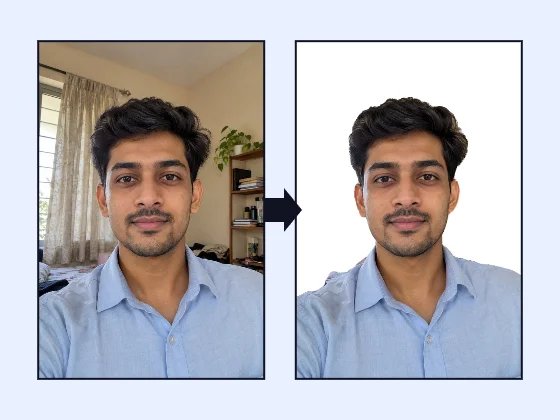
Nothing is uploaded. The person-detection model (about 1.2 MB) downloads to your browser the first time and runs on your device. Some portals, such as passport offices, ask for a photo that has not been edited by software: for those, take a fresh photo against a real plain white wall.
Change a photo background without uploading it
Most of us take form photos at home, and home walls are rarely plain: a cupboard, a calendar, a window or a cream wall with a shadow. Exam forms, ID cards, office profiles and school records usually want a plain light background. This tool finds the person in your photo and puts a new background behind them: white, off-white, light blue, blue, red, grey, any colour you pick, a soft blur of the real room, or no background at all.
It is built for photos of people. The person-detection model is MediaPipe Selfie Segmentation (Apache-2.0), the same one our passport photo maker uses. It downloads to your browser once (about 1.2 MB) and runs on your device, so the photo is never uploaded and there is no watermark. It works on one person facing the camera, head and shoulders or half body. It is not made for products, pets, cars or group photos.
How to change the background
- Upload a photo. Choose a clear, front-facing photo from your gallery. The first time, the model downloads; after that it starts almost at once.
- Pick a background. White is selected by default. Tap another colour and the photo changes in a moment, without running the model again. "Any colour" opens a colour picker, Blur keeps your real room but softens it, and Transparent removes the background completely.
- Check the edges. Zoom in on the hair and shoulders. If a thin line of the old wall shows, move the Edge slider a little to the right. If strands of hair look cut, move it to the left. "Show original" lets you compare.
- Choose the output. "Full size" saves the whole photo (up to 3000 px on the long side) as JPG, or as PNG to keep transparency. "Exam / form size" crops it to an exam preset or your own size in pixels, cm, mm or inches, and saves a JPG inside the KB range.
- Frame and download. In exam mode, drag the preview to move the photo and pinch or scroll to zoom, so your face fills most of the frame. The box under the preview shows the exact pixel size and file size before you download.
What exam notices ask for
Background rules differ from one notice to the next, so read yours first. A few examples from current official instructions (checked October 2026):
| Body | Background in the notice | File rule |
|---|---|---|
| UPSC (Common Application Form) | Plain white; dark backgrounds are not accepted | JPG, 20–200 KB, face about 3/4 of the photo (UPSC instructions) |
| IBPS PO 2026 | Light, preferably white | 200 × 230 px preferred, 20–50 KB JPG (IBPS notice) |
| NEET (UG) 2026, NTA | White | JPG, 10–200 KB, face about 80% of the photo, ears visible |
The exam presets in the tool carry these and other official sizes from our exam photo and signature resizer, so you can change the background and hit the pixel and KB limits in one step. If the file would be smaller than the minimum KB, the tool adds harmless padding inside the JPG so the portal accepts it, the same way our resizer does.
When not to use a changed background
Some offices want a photo exactly as the camera took it. The US State Department, for example, says passport and visa photos must not be changed with software, apps, filters or AI, and asks you to retake the photo if the background is wrong (travel.state.gov). For Indian passports, the photo is normally taken at the Passport Seva Kendra. If your portal or office asks for an unedited photo, stand against a real plain white wall in daylight and take a new one; our passport size photo maker can then crop and print it.
A changed background is never a way to hide who you are. Use your own recent photo, keep your face natural, and do not add filters or smoothing on top.
Tips for a clean result
- Light from the front. Face a window. Light from behind makes a dark outline that is hard to separate.
- Contrast helps. Black hair against a cream wall separates better than black hair against a dark cupboard.
- Keep your whole head in the photo. If the top of the head is cut off, the model has less to work with and the crop will look odd.
- Loose hair and glasses are the hardest parts. Check them at full zoom before you submit.
- Pick white or off-white for forms. Light blue suits many office and school ID cards; red and blue are used by some ID card printers. Follow what you are asked for.
- Use Blur for profile pictures. It keeps the photo natural while hiding a messy room, and works well for LinkedIn, WhatsApp or a company directory.
Common questions about quality
Will my photo lose quality? Full-size downloads keep your photo's pixels, up to 3000 px on the long side, which is more than any form or print needs. Exam downloads are made at the exact size the notice asks for, at the highest JPG quality that fits the maximum KB.
Why does it take a few seconds the first time? The model and its runtime download once. Your browser keeps them, so the next photo starts quickly, and the page keeps working even if the connection drops.
Can I print it? Yes. Save it full size and open it in our passport size photo maker to make a sheet of copies on 4 × 6 inch photo paper or A4, or use the photo resizer to set an exact cm size at 300 DPI.
This site is not affiliated with UPSC, IBPS, NTA, the US State Department or any exam body. Rules can change between notices, so always follow the latest instructions for your application.
Background colour shortcuts
Frequently asked questions
How do I change my photo background to white online for free?
Upload your photo here and the tool finds you in it automatically. White is selected by default, so the background turns white in a few seconds. Download it full size, or open the Exam / form size tab to save it at the exact pixels and KB your form asks for.
Is my photo uploaded to a server?
No. The person-detection model (about 1.2 MB) is downloaded to your browser the first time and runs on your own phone or computer. Your photo is never sent anywhere and is gone when you close the page.
Does it work on photos of products or pets?
No. The model is trained to find people, so it is meant for portraits: one person, head and shoulders or half body. On products, animals or groups the edges will usually be wrong.
Can I use this for a passport or visa photo?
Check the rules first. Some offices do not accept photos changed by software; the US State Department, for example, asks for photos that are not digitally altered. For those, take a fresh photo in front of a real plain white wall. For most exam forms, which ask for a light or white background, a clean result from this tool is usually fine.
Which background colour should I choose for an exam form?
Follow your notice. Many ask for a light or white background: IBPS asks for a light, preferably white, background and UPSC asks for plain white. Choose blue or red only when the form or ID card asks for it.
Why is there a thin line of the old wall around my hair?
Hair is the hardest part to separate. Move the Edge slider a little to the right to tighten the edge, or to the left if hair looks cut off. A photo taken in good light against a wall that contrasts with your hair gives the cleanest edge.
Can I get a transparent background?
Yes. Choose Transparent and the download becomes a PNG with no background, which you can place on a design, ID card or document. JPG cannot hold transparency, so exam-size files are saved with a white background.