PDF to JPG Converter
Turn PDF pages into sharp JPG or PNG images at the resolution you need, for WhatsApp, forms or printing. The PDF is converted on your own device.
- 100% free
- No sign-up
- Runs in your browser
- Updated October 2026
1Choose a PDF
2Image settings
JPG files are smaller. PNG keeps text perfectly sharp but is larger.
3Pages
Type page numbers and ranges, or tap the pages in the preview.
Pages
Tap a page to include or skip it. Each page becomes one image.
Your PDF's pages appear here.
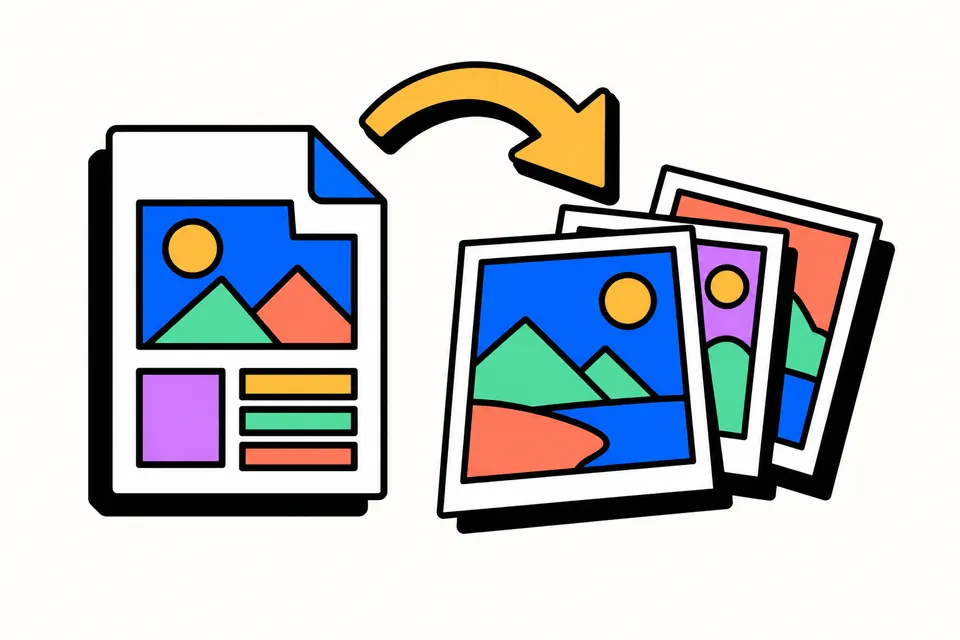
Turn PDF pages into images, on your own device
A PDF is the right format for documents, but sometimes you need a picture instead: an admit card or a marksheet to send on WhatsApp, a page of a brochure for Instagram, one page of a bill to attach to a reimbursement form that only takes JPG, or a scanned certificate for a portal that will not accept PDFs. This converter renders each page of your PDF as a JPG or PNG image at the resolution you choose.
The work happens in your browser. The PDF is not uploaded anywhere, there is no sign-up or daily limit, and nothing is stamped on your images. Once the page has loaded, it keeps working even if your internet connection drops.
How to convert a PDF to JPG
- Choose the PDF. Tap the box or drop the file on it. If the PDF is password-protected, type the password when asked.
- Pick the format. JPG for small files that every app accepts, or PNG for perfectly sharp text.
- Pick the resolution. 150 DPI suits most uses; see the table below.
- Choose the pages. Keep All pages, or switch to Choose pages and type ranges such as
1-3, 5. You can also tap pages in the preview to include or skip them. - Download. One page downloads as a single image. Several pages download as a ZIP file with the images named by page number, such as
marksheet-page-2.jpg. Each page card also has its own Save button.
What DPI means and which one to use
DPI (dots per inch) decides how many pixels each inch of the page becomes. The pixel size of an image is simply the page size in inches multiplied by the DPI. An A4 page is 8.27 × 11.69 inches, so it comes out like this:
| DPI | A4 page in pixels | Good for |
|---|---|---|
| 72 | 595 × 842 | Quick previews and the smallest files |
| 150 | 1240 × 1754 | Reading on a phone, WhatsApp, most online forms |
| 200 | 1654 × 2339 | Small print, tables and zooming in |
| 300 | 2480 × 3508 | Printing and archiving |
Higher DPI gives sharper text but bigger files. If a form asks for exact pixel dimensions or a file size in KB, convert at 150 DPI first and then use our image compressor to resize or bring the file under the limit.
Private by design
Many converters upload your PDF to their server, process it there and keep it for a while before deleting it. Here, the PDF reader runs inside the web page itself, so the file is read from your device and the images are written back to your device. That makes it a sensible choice for marksheets, salary slips, Aadhaar or PAN copies and bank statements.
JPG or PNG?
- JPG compresses photos and scans very well, so a page is usually a fraction of the size of the same page as PNG. Use the quality slider to trade size for detail; 80–90% is hard to tell apart from 100% for most documents.
- PNG is lossless: text, thin lines and charts stay crisp with no smudging around letters. Choose it for screenshots of text-heavy pages, diagrams or anything you will edit further. Files are larger.
The background of every page is saved as white, the way it looks in a PDF reader.
Whole pages, not the pictures inside them
This tool saves each page exactly as it looks: text, photos, logos, stamps and margins together in one image. It does not pull out the separate photos embedded in a PDF. If you only need one photo or part of a page, convert the page and crop the image afterwards in your phone's gallery or photo editor.
Page rotation is kept. A page that shows sideways in your PDF reader comes out sideways here as well, so turn such pages in the PDF editor first if you want them upright.
Uses people in India often need it for
- Exam and job portals that ask for a certificate, caste certificate or ID proof as a JPG. Convert the page, then check the size limit in the notice.
- WhatsApp and email: a JPG opens instantly on any phone, while a PDF needs a viewer and a tap more.
- Social media posts from a PDF menu card, price list or brochure.
- Presentations and documents: paste a page into PowerPoint, Word or Google Slides as an image.
Tips and common problems
- Form fields and stamps filled in the PDF are included in the images, the same as you see on screen.
- Blurry text? Pick a higher DPI, or PNG. A scanned PDF can never be sharper than the original scan.
- Phone running slowly? Very large PDFs at 300 DPI need a lot of memory. Convert fewer pages at a time or use 150 DPI.
- Very large pages such as posters or maps are scaled down if they would go past about 16 megapixels, a limit many phones have for images. The summary under the preview tells you when this happens.
- Opening the ZIP: on Android, open it in the Files app and choose Extract; on iPhone, tap it in Files to unzip it.
Related tools
To go the other way and combine photos into one document, use JPG to PDF. To change the PDF itself, such as adding a signature, filling a form or deleting pages, use the PDF editor.
Shortcuts
Frequently asked questions
How do I convert a PDF to JPG on my phone?
Open this page in Chrome or Safari, tap Choose a PDF and pick the file. Choose JPG and a resolution, tap the pages you want, then tap Download. One page is saved as a JPG; several pages are saved together in a ZIP that your phone can open in its Files app.
Which DPI should I choose?
150 DPI suits reading on a phone and most online forms. Pick 200 or 300 DPI for small print, zooming in or printing, and 72 DPI for the smallest files. Higher DPI means more pixels and a bigger file.
Should I choose JPG or PNG?
JPG gives much smaller files and is accepted almost everywhere, so it is the usual choice for forms and sharing. PNG keeps text and lines perfectly crisp with no blur around letters, but the files are larger.
Can I convert only some pages of the PDF?
Yes. Choose pages and type numbers and ranges such as 1-3, 5, or simply tap pages in the preview to include or skip them. Each card also has its own Save button for a single page.
Is my PDF uploaded to a server?
No. The pages are rendered by your browser on your own phone or computer and the images are saved straight to your device, so it is safe for marksheets, ID proofs and bank statements. There is no daily limit and no watermark.
Can I convert a password-protected PDF to JPG?
Yes, if you know the password. You will be asked for it when the file opens, and it is checked on your device only. The images you save are ordinary pictures without a password.
Why does a very large page come out smaller than the DPI I picked?
Phones can only draw images up to a certain number of pixels. If a page at your DPI would go past about 16 megapixels, the tool scales it down to stay within that limit and says so in the summary.