Grid Drawing Tool (Photo to Grid)
Add a measured grid to any picture so you can copy it square by square, and print a matching blank grid on A4 or A3 at true size. Your picture never leaves your device.
- 100% free
- No sign-up
- Runs in your browser
- Updated October 2026
1Add a picture
2Paper and crop
Paper Orientation Picture on the paperDrag the picture in the preview to choose the part you keep.
3Grid
4Picture helper
Show the picture asA lighter picture makes the grid lines easier to see.
Add a picture to see it with the grid.
Print at 100% / Actual size (not "Fit to page") so every square on paper is exactly the size you chose. Each page has a 5 cm check line at the bottom: measure it with a ruler.
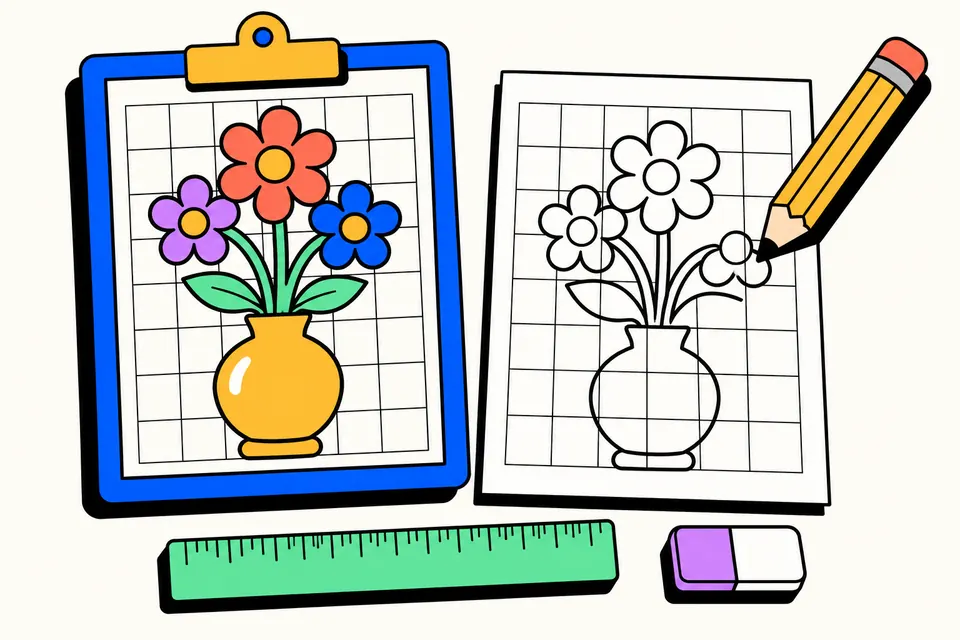
Copy any picture one square at a time
Drawing a face, an animal or a building freehand is hard because small mistakes in proportion add up: the eyes end up too high, the head too big for the body. The grid method fixes this. You lay the same grid of squares over the picture and over your paper, and then you copy only what is inside one square at a time. Each square is a small, simple drawing problem, and when all of them are done the whole picture is in the right place.
Artists have used grids for centuries to enlarge sketches onto walls and canvases, and art teachers in Indian schools use it for drawing classes and competition practice. This tool does the measuring part for you. Add a picture, choose the square size in centimetres or inches, and print the gridded picture together with a blank grid of exactly the same size. It works on a phone or a computer, in your browser, and the picture is never uploaded.
How to use the grid drawing tool
- Add a picture. Tap the box and choose a photo from your gallery or computer, or try the sample drawing.
- Choose the paper. Pick A4 or A3. Orientation follows the picture on Auto, or you can set portrait or landscape. "Fill the paper" crops the picture to the page: drag it in the preview and use Zoom to choose the part you want. "Whole picture" keeps all of it.
- Set the grid. On "Square size", choose 1 to 5 cm, or ½ to 2 inches. On "Rows × columns", type how many columns you want; keep "squares square" ticked so the cells stay square.
- Style the lines. Pick a line colour that shows up on your picture (white lines suit dark photos), a thickness, labels and diagonals.
- Use the picture helper if you like. Black and white, high contrast or outline make shapes easier to see. Lower the picture strength to make the grid stand out.
- Print. Download the PDF (the gridded picture plus a blank grid page) and print at 100% or "Actual size". Measure the 5 cm check line at the bottom of the page to make sure your printer didn't shrink it.
Choosing the square size
| Square size | Squares on A4 (portrait) | Good for |
|---|---|---|
| 5 cm | 3 × 5 | Young children, very simple pictures |
| 3 cm | 5 × 8 | Beginners, cartoons, animals, flowers |
| 2 cm | 8 × 13 | Most drawings, landscapes, buildings |
| 1.5 cm | 11 × 17 | Portraits and detailed work |
| 1 cm | 17 × 26 | Very fine detail, experienced artists |
The counts are for the "Fill the paper" option with labels on; the tool shows the exact count for your choice. A3 holds about twice as many squares as A4 at the same size, or the same number of bigger squares, which is handy when a competition gives A3 drawing sheets.
Drawing the grid on your own paper
You don't have to draw on the printed blank grid. Many artists prefer their own drawing sheet or canvas:
- Use the same square size as the gridded picture, and draw the lines very lightly with an HB or 2H pencil so they can be erased later.
- Label the rows and columns in the margin the same way (A, B, C across the top and 1, 2, 3 down the side).
- To make the drawing bigger than the print, use bigger squares on your paper. If the print has 2 cm squares and your paper has 4 cm squares, the drawing comes out twice as large, with the same number of squares.
Tips for copying square by square
- Look at shapes, not things. Inside one square, an eye is just a curve that starts a third of the way down the left edge. Drawing what you see in each square, rather than what you think an eye looks like, is the whole trick.
- Mark where lines cross the grid. Put small dots where an outline meets the edges of a square, then join them.
- Cover the rest. Fold a sheet of paper so only one row of the reference is visible. It keeps you focused.
- Outlines first, shading later. Get all the main lines right before any shading. The Outline helper shows those lines clearly.
- Use the diagonals for faces. They give extra guide points inside each square, which helps place eyes, nose and lips accurately.
- Erase the grid at the end. Use a kneaded or soft eraser and press lightly so you don't smudge the drawing.
Printing at true size
The PDF is drawn in millimetres on a real A4 (210 × 297 mm) or A3 (297 × 420 mm) page, and the grid lines are vector lines, so they stay sharp at any zoom. In the print window, choose the right paper size and "Actual size" or "100%" scaling. "Fit to page" or "Shrink oversized pages" makes every square a little smaller. If your printer can't print A3, a print shop can print the A3 PDF for you.
PNG is useful if you want to keep the gridded picture on a tablet and draw from it on screen. Your settings are remembered in this browser; your picture is not stored.
More grid drawing pages
Frequently asked questions
What is the grid method of drawing?
You draw the same grid of squares on the reference picture and on your paper, then copy the picture one square at a time, looking only at what is inside each square. It helps you get proportions and positions right, which is why artists and art teachers use it.
What size should the squares be?
For beginners and children, 3 to 5 cm squares are easiest. For detailed portraits, 1.5 to 2 cm works well. Pick the size under 'Square size'; the summary shows how many squares fit on A4 or A3.
Will the squares print at exactly the size I chose?
Yes, if you print the PDF at 100% or 'Actual size' rather than 'Fit to page'. Each page has a 5 cm check line at the bottom so you can confirm the scale with a ruler.
Why are the rows and columns labelled?
Labels like A, B, C across the top and 1, 2, 3 down the side let you find the same square on both sheets quickly, for example C4. You can switch to numbers on both sides or turn labels off.
What are the diagonal lines for?
Diagonals split each square into triangles, which gives extra guide points inside a square. They help with faces, curves and small details.
What does the Outline option do?
It finds the edges in your photo and shows them as dark lines on white, like a pencil sketch. That makes the main shapes easy to see before you start shading. Black and white and high contrast help you judge light and dark areas.
Is my photo uploaded anywhere?
No. The picture is opened and processed in your browser only. Nothing is sent to a server, there is no sign-up and no watermark.