Image to Text Converter (Hindi & English OCR)
Turn a photo, screenshot or scanned page into text you can copy, edit and save as Word. The text is read on your own device, so your image is never uploaded.
- 100% free
- No sign-up
- Runs in your browser
- Updated October 2026
1Add a photo or screenshot
Tip: copy a screenshot and press Ctrl+V anywhere on this page.
Drag on the image to read only part of it.
2Language and settings
Text
Starting…
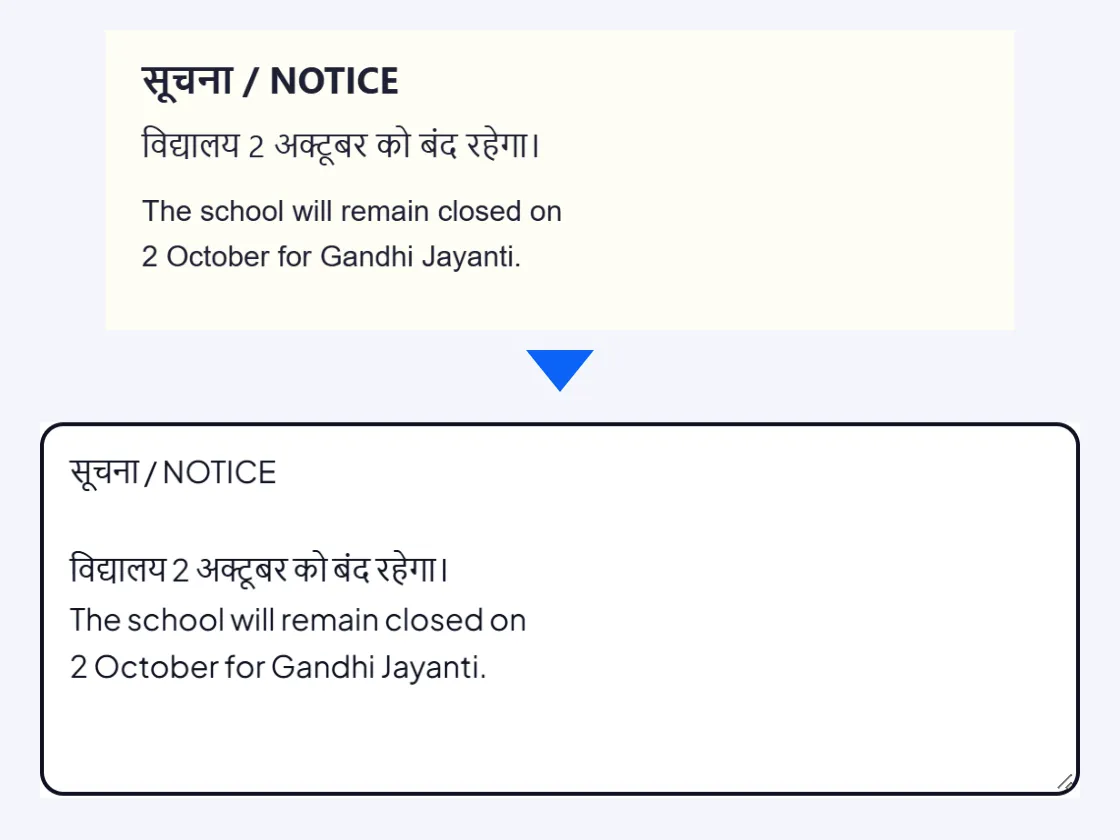
Works best on printed text, screenshots and clear phone photos. Handwriting is usually not read well. Always check names, numbers and amounts before you use the text.
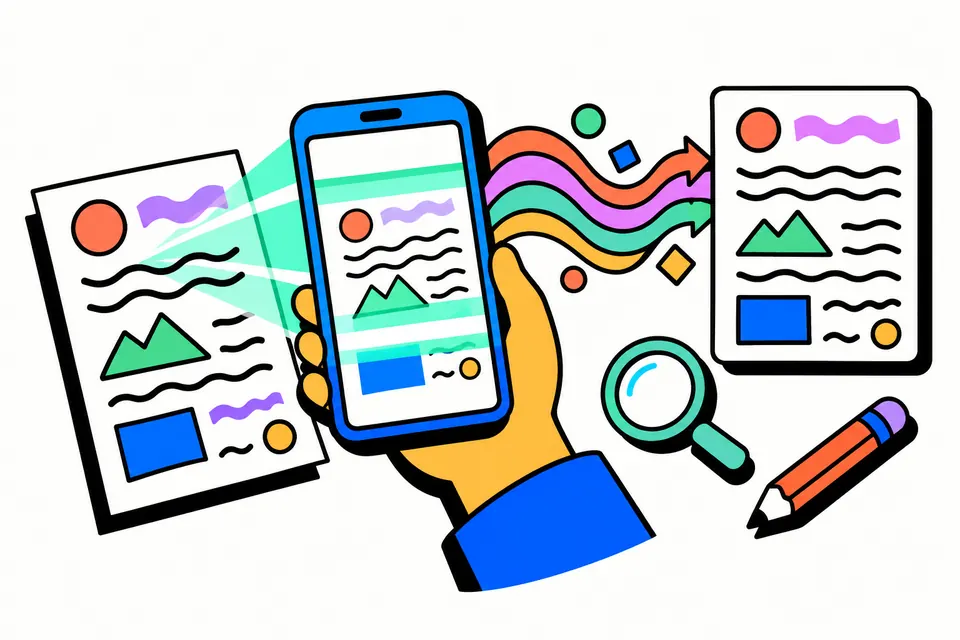
Copy text from any photo, on your own phone
Retyping a notice from a WhatsApp photo, a paragraph from a textbook or the details on a printed letter takes time and invites mistakes. This image to text converter reads the words in a picture and gives them back as plain text that you can copy, edit, paste into WhatsApp or save as a Word file. It reads English and Hindi, and pages that mix the two, which is common in Indian forms, circulars and newspapers.
It is useful for students copying notes from a book, office staff typing out a circular or a court order, shopkeepers turning a supplier's price list into text, and anyone who wants to search or translate a scanned page. The reading is done by optical character recognition (OCR) inside your browser. Your image is not sent to a server, there is no daily limit, no captcha and no watermark.
How to convert an image to text
- Add the image. Choose one or more photos, drop them on the box, tap Take a photo on a phone, or copy a screenshot and press
Ctrl+Von the page. - Fix the picture if needed. Use Rotate if the photo is sideways and Straighten if the lines are tilted. Drag on the image to select only the part you want, such as one paragraph or a table column.
- Choose the language. English, Hindi, or Hindi + English for mixed pages. Choosing the right one makes a big difference to accuracy.
- Tap Read text. The first time, the reading data downloads once and the progress bar shows how far it has got. After that it starts almost at once.
- Check and save. Correct any wrong words in the text box, then tap Copy text, Download Word or Download .txt.
What gets read well, and what does not
The engine is Tesseract, a free and open-source OCR engine, compiled to run in the browser. We use its compact "fast" language models from the official tessdata_fast set, which keeps the download small enough for mobile data. Like any OCR, it reads printed text far better than handwriting.
| Image | What to expect |
|---|---|
| Screenshot of a web page, PDF or chat | Very good. The letters are sharp and evenly lit. |
| Clear phone photo of a printed page | Good, if the page is flat, in focus and not in shadow. |
| Old photocopy or faint, yellowed paper | Fair. Turn on Boost contrast. |
| Hindi newspaper or book | Good on clear print. Small text and broken matras cause errors. |
| Handwritten notes, signatures | Poor. Most words will be wrong or missing. |
| Text on a curved surface, logos, stylised fonts | Poor to fair. |
Hindi OCR tips
Devanagari has conjunct letters, matras above and below the line, and the shirorekha joining each word, so it needs a clearer image than English. A few habits help a lot:
- Choose Hindi for pages that are only in Hindi. Choose Hindi + English only when both scripts are on the page, because it is slower and can confuse the two.
- Take the photo straight from above in daylight, with the page filling the frame. Avoid the shadow of your phone and hand.
- Crop to the text. Photos, stamps and borders around the text can turn into stray letters.
- Check words with ि, ृ and half letters such as क्ष, त्र and श्र. These are the ones OCR most often gets wrong.
The output is standard Unicode Hindi, the same text you type with a Hindi phone keyboard or the Inscript layout. It works in Word, WhatsApp, email and government portals that accept Unicode. If you have Hindi text in the older Kruti Dev font instead, copied out of a PDF, use our PDF to Text tool, which can convert Kruti Dev letters to Unicode.
Getting the most accurate text
- Resolution matters more than file size. Text should be clearly readable when you zoom in. A blurry WhatsApp forward that has been compressed several times will not improve, so ask for the original photo or a PDF.
- One column at a time. For newspapers and two-column pages, drag to select one column and read it, then the next. This keeps the sentences in the right order.
- Tables. OCR returns text line by line, so a table comes out as rows of words separated by spaces. For a clean result, read one column at a time or retype the numbers you need.
- Join lines into paragraphs. Printed pages break lines at the edge of the paper. Turn this on to get flowing paragraphs that paste neatly into a document. Leave it off for addresses, lists and poems.
- Check the confidence figure. Below the text we show how sure the engine was. A low number means you should crop, straighten or boost the contrast and try again.
Common mistakes to avoid
- Trusting numbers without checking. OCR can read 0 as O, 1 as l or 5 as S. Always compare roll numbers, account numbers, amounts and dates with the original before you submit them anywhere.
- Picking the wrong language. English mode will turn Hindi into strange Latin letters, and Hindi mode will mangle English words.
- Using a tilted photo. Even a few degrees of tilt can join or split lines. Use Straighten until the lines look level.
- Reading a whole page when you need one line. Cropping is faster and gives cleaner text.
Privacy and offline use
Everything happens on your device. The page downloads the OCR engine and the language you choose the first time you tap Read text: about 1.5 MB for the engine, 2 MB for English and 0.9 MB for Hindi. These files are then saved by your browser, so the next time the tool starts almost instantly and can even work without a connection. Your images and the text are not stored by us. Only your chosen settings, such as the language, are remembered in your browser.
This tool is an independent free utility. It is not linked with any OCR app, search engine or government department. For text inside PDF files, try PDF to Text. To make a photo smaller before you share it, use the image compressor.
Frequently asked questions
How do I convert an image to text in Hindi?
Add the photo or screenshot, choose Hindi (or Hindi + English if the page mixes both), and tap Read text. The first time, your browser downloads the Hindi reading data once, about 0.9 MB plus the engine. The text appears in a box where you can correct it, copy it or save it as a Word file.
Is my photo uploaded anywhere?
No. The OCR engine runs inside your browser on your phone or computer, and the image never leaves your device. That makes it safe for marksheets, ID cards, bank letters and other private papers.
Can it read handwriting?
Not reliably. The engine is trained on printed text, so neat block letters may come out partly right, but joined handwriting usually does not. It works best on printed documents, typed notices, book pages and screenshots.
Can I convert a JPG to a Word file?
Yes. After the text is read, tap Download Word to get a .docx file you can open in Microsoft Word, Google Docs or WPS Office. Only the text is copied, not the layout, pictures or tables of the original image.
Why is some of the text wrong?
OCR guesses each letter from the picture, so blur, shadows, small print, tilted photos and fancy fonts cause mistakes. Crop to just the text, straighten the photo, turn on Boost contrast for faint pages, and pick the right language. Always check names, numbers and amounts before you use the text.
Does it work offline?
After the first use, yes. The engine and the language you used are saved in your browser, so later you can read images even without internet, as long as you open the page while online once and the browser keeps its saved data.
How many images can I convert at once?
Up to 20 images in one go. They are read one after another and the text comes out in the same order, separated by a blank line, so you can turn several screenshots or pages into one document.