PDF Editor: Edit Text, Fill & Sign PDF
Change the existing text in a PDF, add your signature, ticks, images and white-out, fill in form fields, and reorder, rotate or merge pages. The file never leaves your phone or computer.
- 100% free
- No sign-up
- Runs in your browser
- Updated October 2026
1Your PDF
Open a PDF on the right. You can then:
- Change the existing text: tap a line and type
- Add text, a signature, images, ticks and the date
- Cover old content with white-out, highlight lines, draw
- Fill in form fields, if the PDF has them
- Rotate, delete, reorder or duplicate pages
- Merge another PDF and extract pages
Your PDF is opened and saved inside this browser. It is never uploaded, so it is safe for ID proofs, bank statements and contracts.
2Fill the form
Flattening turns the answers into normal page content, so nobody can change them later.
2Pages
Tap pages to select them. Drag the ⠿ handle to reorder.
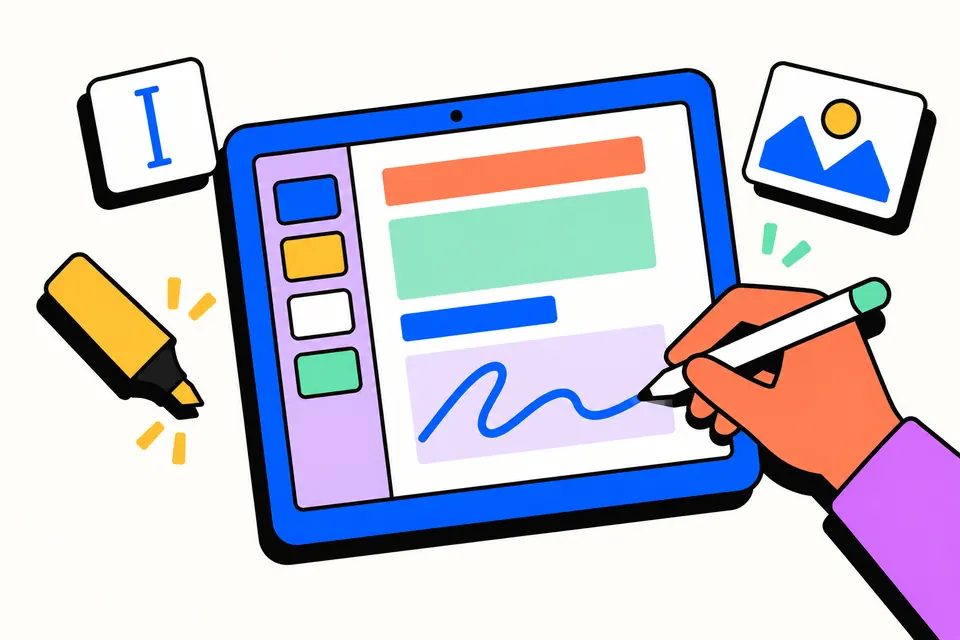
Edit a PDF without uploading it anywhere
Most online PDF editors send your file to their server first, and many of them ask you to sign in, cap you at a few tasks a day, or keep text editing behind a paid plan. This editor works differently: the PDF is opened by your own browser, the changes are made on your phone or computer, and the finished file is saved straight to your device. Nothing is uploaded, so it is a sensible choice for Aadhaar and PAN copies, bank statements, salary slips, rent agreements and office documents.
It is built for the small jobs that come up every week in India: correcting a name, date or amount in a letter or bill, signing a declaration, filling an application form, ticking boxes on a KYC sheet, removing a blank page from a scan, or joining an admit card and a fee receipt into one PDF.
How to use the PDF editor
- Open your PDF. Tap the box above or drop a file on it. Pages appear in a few seconds, even on a phone. If the PDF has a password, you will be asked for it.
- Change existing text. Tap Edit text. Every line the tool can change gets a dotted outline. Tap a line, type your correction and press Enter. Tap Done when you have finished.
- Add things. Text adds a text box. Sign opens a pad where you can draw, type or upload your signature. Image places a photo or stamp. Tick, Cross and Date drop a ready mark.
- Cover or mark content. White-out, Highlight, Box, Line and Draw work by dragging on the page.
- Move and resize. Drag any item to move it and pull the yellow corner to resize it. The bar above the page changes the text, size and colour, copies the item to every page or deletes it. Undo reverses your last change.
- Fill the form. If the PDF has fillable fields, they are listed in the panel. Type your answers and they appear on the page.
- Organise pages. In Pages, select pages to rotate, move, duplicate or delete them, add a blank page, or drag the handle to reorder. Add another PDF to merge files.
- Download. Check the file name and tap Download edited PDF. Your original file is not changed.
How editing existing text works
A PDF is closer to a printed page than to a Word file: each piece of text sits at a fixed position, and the fonts are often stored only partly inside the file. So instead of rewriting the file's text, Edit text works like a very careful white-out. When you change a line, the tool:
- Covers the old line with a box in the colour of the paper around it. It samples that colour, so it also works on grey forms and on white text printed on a coloured band.
- Writes your text on the same line, starting at the same point, in the same size and colour, and in bold or italic if the original was.
- Picks the closest font. Helvetica is used for Arial-style text, Times for Times New Roman-style text and Courier for typewriter-style text. They have the same letter widths as Arial, Times New Roman and Courier New, so a corrected line usually keeps its length. You can change the font, size, colour or cover colour in the bar above the page.
The new words stay sharp and selectable. Three limits are worth knowing. Each line is edited on its own, so a longer sentence does not push the next line down. Other fonts, such as Calibri or a company font, get the nearest match, so compare the result with the original. And the old words are hidden, not deleted: someone with PDF software can still copy them out of the file, so do not use Edit text to remove an account number or other private detail before sharing.
A scanned PDF is a photo of the paper, so it has no words to edit, and the tool tells you so. Cover the old words with White-out and add a Text box on top instead.
Hindi and other Indian languages
English, numbers and the rupee sign (₹) are written as real text, so they can be selected and searched in the saved PDF. Hindi, Marathi, Tamil, Bengali and other scripts, whether added with Text or typed into Edit text, are saved as a high-resolution image of the text. They print cleanly but cannot be searched. Form fields only take English characters and ₹; for an answer in Hindi, use the Text tool.
Signatures: what is legally a "digital signature" in India
A signature you draw, type or upload here is an image of your handwritten signature placed on the page. That is enough wherever a printed or scanned signature is accepted, such as many letters, declarations and internal forms. It is not a Digital Signature Certificate (DSC) or an Aadhaar-based eSign. Under the Information Technology Act, 2000, DSCs are issued by Certifying Authorities licensed by the Controller of Certifying Authorities, and eSign is a separate online service that verifies the signer through e-KYC. If a portal, contract or regulator asks for a digital signature, use a DSC or eSign rather than an image.
Password-protected and locked PDFs
If a PDF needs a password to open, type it when asked; it is checked on your device. Some PDFs, such as bank statements, also carry edit restrictions. Those pages are saved as an image copy: they look the same, but their text is no longer selectable. The tool tells you when this happens.
Tips for a clean result
- Zoom in before placing a signature or editing small text, so you can tap the right line and line things up exactly.
- Check the cover colour on photos and patterned backgrounds. If the box shows, pick a closer colour under Cover colour.
- Match the paper. Some scans are cream or grey. Pick a colour close to the paper for White-out so the cover does not show.
- Flatten filled forms before you email them, if the other person should not be able to change the answers.
Other PDF tools
Need images instead of a PDF? Use PDF to JPG to turn pages into pictures. To make a PDF from photos of documents, use JPG to PDF. For a signature image on its own, the signature maker cleans up a photo of your signature and saves a transparent PNG.
Shortcuts
Frequently asked questions
Is my PDF uploaded to a server when I edit it here?
No. The PDF is opened and saved by your own browser, on your phone or computer. Nothing is sent to our server, so you can safely edit ID proofs, bank statements and contracts. Once the page has loaded, editing keeps working even if your internet drops.
Can I edit the existing text in a PDF?
Yes, in PDFs made on a computer, such as letters from Word, bills and bank or portal downloads. Tap Edit text, tap the line you want to change and type. The old line is covered with a box in the background colour and your text is written on the same line, in the same size and colour. The old words are hidden under the cover, not removed from the file, so don't rely on it to delete private details.
Will the edited text keep the same font and format?
It keeps the position, size, colour and bold or italic style, and picks the closest of three fonts: Helvetica for Arial-style text, Times for Times New Roman-style text and Courier for typewriter-style text. These have the same letter widths as Arial, Times New Roman and Courier New, so lines usually keep their length. Other fonts, such as Calibri, get the nearest match, so check the result. Each line is changed on its own; longer text does not flow onto the next line.
How do I add a signature to a PDF on my phone?
Open the PDF, tap Sign, and draw your signature with your finger on the pad, type your name in a handwriting style, or upload a photo of your signature on white paper. Tap Add to page, drag it onto the signature line and pull the corner to resize it, then download the PDF.
Is a signature added here legally valid?
It is an image of your handwritten signature, which is fine wherever a printed or scanned signature is accepted. It is not a Digital Signature Certificate or an Aadhaar eSign, which are the signatures recognised under the IT Act, 2000 for online filings and many contracts. Use those when a portal or the other party asks for a digital signature.
Can I fill in a PDF form and type in Hindi?
If the PDF has fillable fields, they are listed under Fill the form and you can type answers in English, numbers and ₹. Hindi and other Indian scripts work with the Text and Edit text tools: that text is saved as a sharp image, so it prints well but cannot be searched. Form fields themselves only take English characters.
Can I edit a scanned PDF?
You can add text, a signature, ticks and white-out to a scanned PDF. A scan is a picture of the paper, though, so Edit text finds no words to change, and the tool tells you so. Cover the old words with White-out and type the new ones in a Text box instead.
Is there a limit on file size, pages or how often I can use it?
There is no daily limit, no sign-up and no watermark. Very large PDFs depend on your device's memory, so a computer copes better than an older phone. PDFs protected with edit restrictions are saved as an image copy, which the tool tells you about.